Monitor Buying Guide Australia: Size, Refresh Rate and Panel Types Explained
A new monitor is one of the upgrades you notice every single day. A bigger, sharper or smoother screen makes work easier on the eyes and games more fun. But the spec sheets are full of jargon: QHD, 144Hz, IPS, VA, OLED, HDR400, 1ms, Adaptive-Sync, USB-C.
Here’s the good news: you only need to answer three questions. What will you mostly use it for? How far do you sit from it? And what’s plugging into it? Get those right and the rest falls into place.
In this guide we explain screen size and resolution, refresh rate, panel types, HDR and connections in plain English. We’ll also show real options from our monitor range, with Australian pricing.
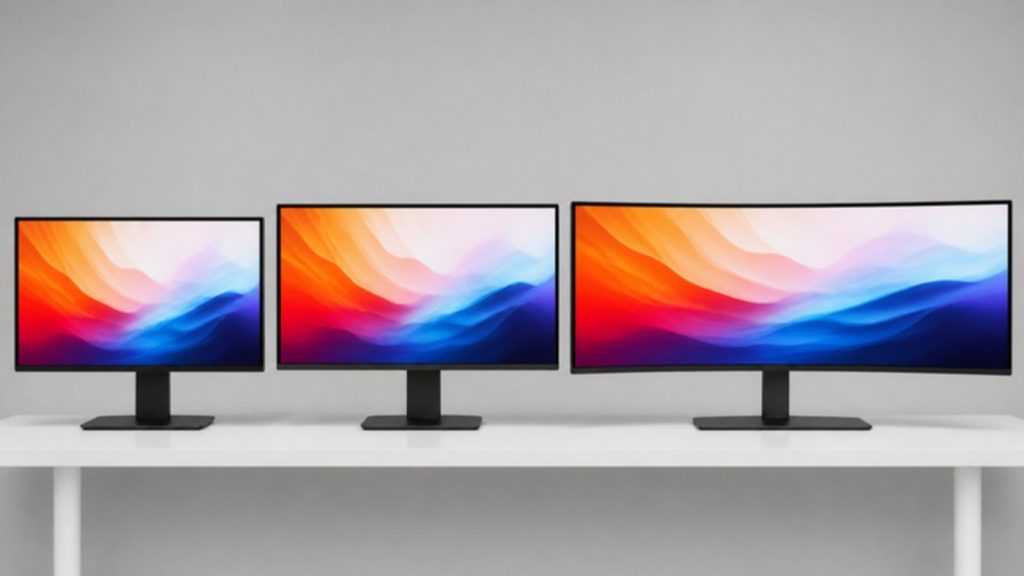
Size and Resolution: Finding the Sweet Spot
Size and resolution work together. A bigger screen needs more pixels, or text starts to look soft. The number that matters is pixel density (pixels per inch, or PPI). Most people find around 90 to 110 PPI looks sharp at normal desk distance, though it’s partly personal preference.
| Size | Resolution | Pixel density | Best for |
|---|---|---|---|
| 24″ | Full HD (1920 x 1080) | ~92 PPI | Everyday use, office desks, budget gaming |
| 27″ | Full HD (1920 x 1080) | ~82 PPI | Fast gaming on a budget. Text looks a little soft up close |
| 27″ | QHD (2560 x 1440) | ~109 PPI | The sweet spot for most people: work, gaming and everything in between |
| 27″ | 4K (3840 x 2160) | ~163 PPI | Very sharp text and photos. Great for Mac users and creators |
| 32″ | 4K (3840 x 2160) | ~138 PPI | Big spreadsheets, video editing and movies |
| 34″ ultrawide | 3440 x 1440 | ~110 PPI | Multitasking, racing and flight sims. Replaces two screens |
Our rule of thumb: 24″ Full HD is fine and affordable. If you’re stepping up to 27″, go QHD. A 27″ Full HD screen makes sense mainly for fast-paced gaming on a tight budget.
Using Windows scaling? On a 27″ 4K screen you’ll usually set scaling to 150%. Everything stays the same size, just much crisper.
Refresh Rate: Do You Need 144Hz or More?
Refresh rate (measured in hertz, Hz) is how many times per second the screen updates. Higher means smoother motion, even when you’re just scrolling a web page.
- 60 to 75Hz: fine for office work, email and video.
- 100 to 120Hz: noticeably smoother for everyday use. Many office monitors now include it for little or no extra cost.
- 144 to 180Hz: a good sweet spot for most gamers, and now common at sensible prices.
- 240Hz and above: for competitive shooters and esports, or any fast game where your PC can actually reach those frame rates.
The catch: your computer has to keep up. A 240Hz monitor only looks like 240Hz if your graphics card can produce around 240 frames per second in that game. For a mid-range PC playing new releases, 144 to 180Hz at QHD is the better match.
Tip: after you plug in a high-refresh monitor, check Windows is actually using it. Go to Settings > System > Display > Advanced display and choose the highest refresh rate. Windows often leaves new monitors at 60Hz.
Panel Types: IPS vs VA vs TN vs OLED
The panel type affects colours, contrast and viewing angles more than any other spec.
| Panel | Strengths | Weaknesses | Best for |
|---|---|---|---|
| IPS (and Fast IPS) | Accurate colours, wide viewing angles, fast response on gaming models | Blacks look greyish in a dark room | Most people: work, photos and gaming |
| VA | Deep blacks and high contrast, common on curved screens | Can smear slightly in fast motion | Movies, dark games, curved and ultrawide screens |
| TN | Very fast and affordable | Weaker colours and narrow viewing angles | Mostly esports specialists now |
| OLED | Perfect blacks, stunning contrast, near-instant response | Costs more, less bright on big white pages, burn-in risk with static images | Gaming and movies where picture quality matters most |
A note on OLED burn-in: modern OLED monitors have care features that shift pixels and refresh the panel. These reduce the risk, but they can’t eliminate permanent burn-in from things that stay on screen for hours every day, like a taskbar, desktop icons or a spreadsheet. If that sounds like your day, an IPS monitor is the safer work choice. If you do buy OLED, hide the taskbar, use a dark wallpaper, let the panel run its refresh cycles, and check whether the warranty covers burn-in.
Response Time and Adaptive Sync
Response time is how quickly pixels change colour. You’ll see figures like 1ms GtG (grey-to-grey) or 0.5ms MPRT. GtG and MPRT measure different things, and brands test under different settings, so a “1ms” on one box isn’t directly comparable with a “1ms” on another. Any monitor sold for gaming is fast enough for most players.
Adaptive Sync matters more. It’s sold as AMD FreeSync, NVIDIA G-SYNC Compatible or Adaptive-Sync. It matches the monitor to your graphics card’s frame rate, which stops screen tearing and stutter. It only works within the monitor’s supported range (for example, 48 to 180Hz), and support depends on your graphics card, the port you use and the monitor itself, so check all three. For gaming, treat it as a must-have. Most gaming monitors now include it.
HDR: What the Badges Mean
HDR (high dynamic range) can make highlights brighter and colours richer, but monitor HDR varies a lot.
- HDR10: the monitor accepts an HDR signal. On its own, it doesn’t promise a big visual difference.
- VESA DisplayHDR 400: an entry-level certification that guarantees at least 400 nits peak brightness in VESA’s test. It doesn’t guarantee strong contrast, so the difference can be small.
- DisplayHDR 600 and above, or DisplayHDR True Black (OLED): where HDR starts to look impressive, thanks to higher brightness, deeper blacks or both.
If HDR matters to you, look past the badge to the exact certification, the peak brightness and whether the monitor has local dimming (and how many zones). OLED is often the easiest way to get great HDR contrast, though it isn’t as bright in large bright scenes.
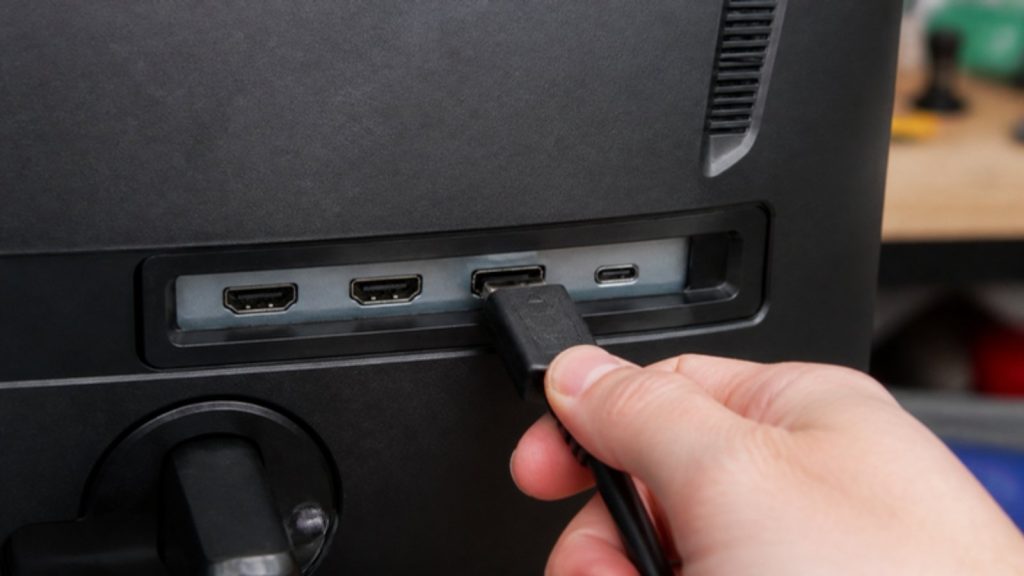
Connections: HDMI, DisplayPort and USB-C
DisplayPort is usually the safest choice for a gaming PC. On many high-refresh monitors, the top refresh rate only works over DisplayPort. The AOC 25G4K below is a good example: 420Hz over DisplayPort, 240Hz over HDMI. Use the cable that came in the box and plug it into your graphics card, not the motherboard.
HDMI is what laptops, consoles and mini PCs usually use. HDMI 2.1 supports 4K at 120Hz and variable refresh rate, so it can be just as good when both the monitor and your device support it. For a PS5 or Xbox Series X at 4K and 120Hz, the monitor needs HDMI 2.1. Whichever you use, check the port versions on both ends and use a cable rated for the speed.
USB-C with power delivery is the easiest option for laptops. One cable carries the picture and charges the laptop, often at 65W. Some models also act as a USB hub for your keyboard and mouse. It only works if your laptop’s USB-C port supports video (DisplayPort Alt Mode or Thunderbolt) and the cable supports video too, such as the one in the box. Check the monitor’s stated charging wattage against what your laptop needs.
Ergonomics: Don’t Skip the Stand
If you sit at a desk all day, a stand that adjusts in height makes a real difference to your neck and shoulders. The top of the screen should be at or just below eye level. Many budget monitors only tilt, but nearly all have a VESA mount on the back, so you can add a monitor arm later for full adjustment and a clearer desk.
Which Monitor Should You Buy? Options From Our Range
Prices are correct at the time of writing (26 October 2026). Specs are the manufacturers’ figures.
| Best for | Monitor | Spec highlights | Price |
|---|---|---|---|
| Everyday home or office | Philips 24E1N2100D | 24″ Full HD IPS, 120Hz, Adaptive-Sync | $115.80 |
| Laptop users, one-cable setup | Philips 24E1N2300A | 23.8″ Full HD IPS, 120Hz, USB-C with 65W charging, speakers | $230.52 |
| Sharper text on a budget | Philips 27E2N1500L | 27″ QHD IPS, 75Hz, HDR10, Adaptive-Sync | $158.52 |
| Budget gaming | AOC 27G11ZE2 | 27″ Full HD Fast IPS, 240Hz, Adaptive-Sync | $185.33 |
| The 1440p gaming sweet spot | AOC Q27G4Z | 27″ QHD Fast IPS, up to 260Hz (overclocked), DisplayHDR 400, height-adjustable stand | $310.67 |
| Competitive esports | AOC 25G4K | 24.5″ Full HD Fast IPS, 420Hz over DisplayPort (240Hz over HDMI) | $346.63 |
| Crisp 4K for work and photos | LG 27U710B | 27″ 4K IPS, HDR10, 90% DCI-P3 colour | $366.36 |
| Big-screen 4K | Samsung ViewFinity S70H 32″ | 32″ 4K, 60Hz, HDR10 | $404.64 |
| Ultrawide multitasking | LG 34BQ65VA | 34″ curved ultrawide, 3440 x 1440, 100Hz, USB-C with 65W charging, height-adjustable | $498.62 |
| OLED gaming | AOC Q27G4ZD | 26.5″ QHD OLED, 280Hz, 0.03ms response | $797.38 |
Looking for something else? Browse our gaming monitors or home and office monitors.
Practical Tips Before You Buy
Measure your desk. A 34″ ultrawide is about 80cm wide on its stand. Check the stand depth too.
Check your ports. Make sure your PC, laptop or console has an output that matches the monitor, and the right version for the refresh rate you want.
Match the monitor to your graphics card. There’s no point paying for 240Hz at QHD if your PC runs your games at 70 frames per second.
Two screens or one ultrawide? Two 24″ monitors are cheaper and great for office work. An ultrawide gives you the same space with no gap in the middle, which is better for gaming and video timelines.
Buy from an Australian retailer. Local stock means faster shipping, and Australian Consumer Law guarantees apply.
The Honest Verdict: Which Monitor Should You Buy?
For everyday home and office use: a 24″ Full HD IPS at 100 to 120Hz, like the Philips 24E1N2100D, is all most people need.
For laptop users: get USB-C with power delivery. One cable and you’re done.
For most gamers: a 27″ QHD monitor at 144Hz or more is the sweet spot. The AOC Q27G4Z is our pick.
For competitive players: 24.5″ Full HD at 240Hz or more, with a PC that can keep up.
For creators and Mac users: a 27″ 4K IPS keeps text and photos razor sharp.
For the best picture: OLED. Just keep burn-in in mind if your screen shows the same thing all day.
Conclusion
Choosing a monitor doesn’t have to be confusing. Work out what you’ll use it for, pick the size and resolution that suit your desk, and make sure it connects properly to your PC or laptop. Do that and you’ll enjoy it every day for years.
Ready to upgrade? Browse our full monitor range online, with Australian stock and same-day shipping on eligible orders. If you’re not sure which screen suits your setup, get in touch and we’ll help you choose.