


Mesh Wi-Fi vs Range Extender: How to Fix Wi-Fi Dead Zones
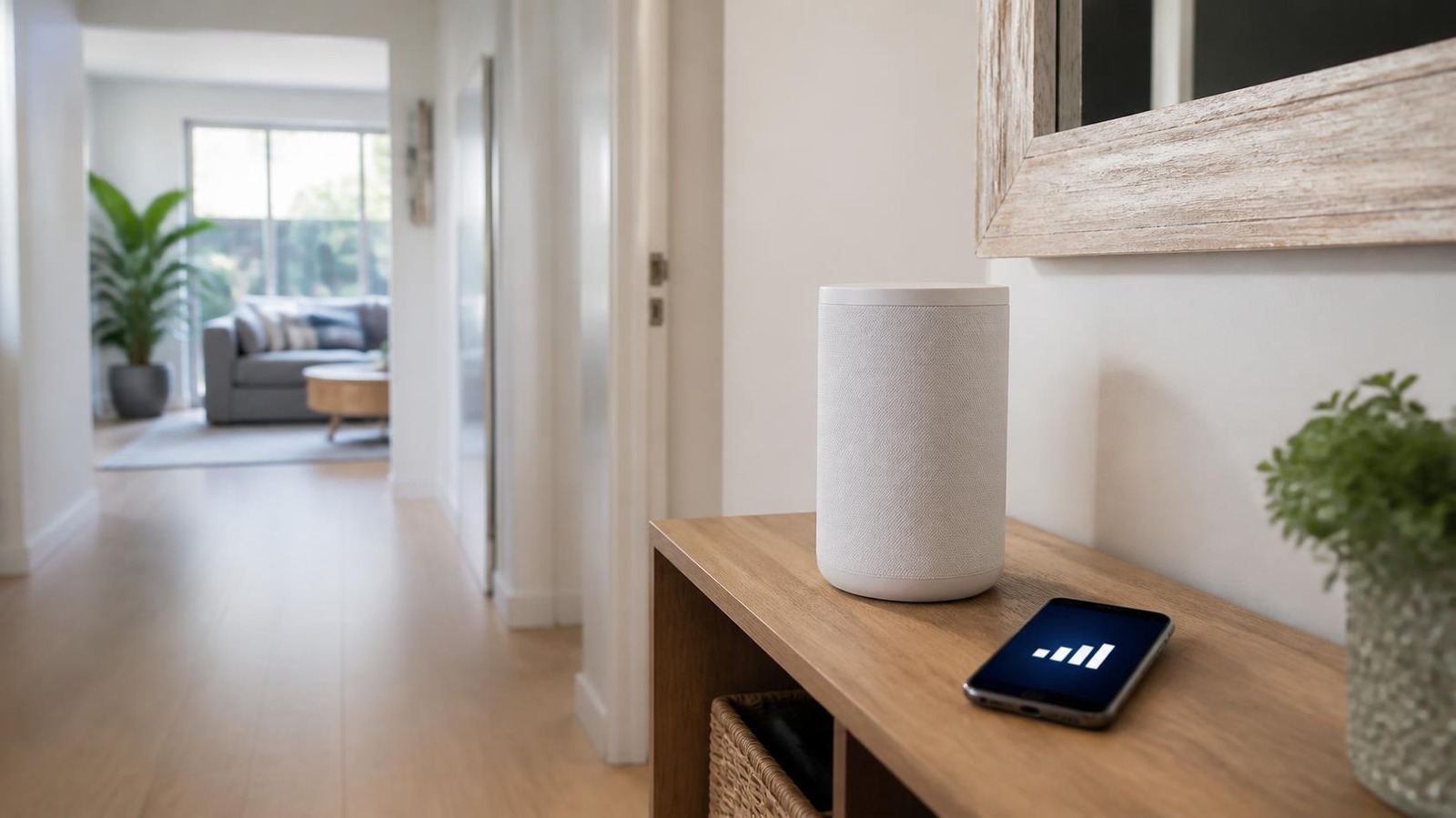
Fast NBN plan, but the Wi-Fi drops out in the back bedroom? You’re not alone. In most homes the internet connection isn’t the problem. The Wi-Fi is. One router in the corner of the lounge room can’t push a strong signal through brick walls, two storeys and a garage.
The good news is there are three simple fixes: a range extender, a mesh system, or wired access points. Each suits a different home and budget.
In this guide we explain how each one works, which Wi-Fi standard is worth paying for, and which to choose for your home. We’ll also show real options from our mesh Wi-Fi range, with Australian pricing.
Why You Have Wi-Fi Dead Zones
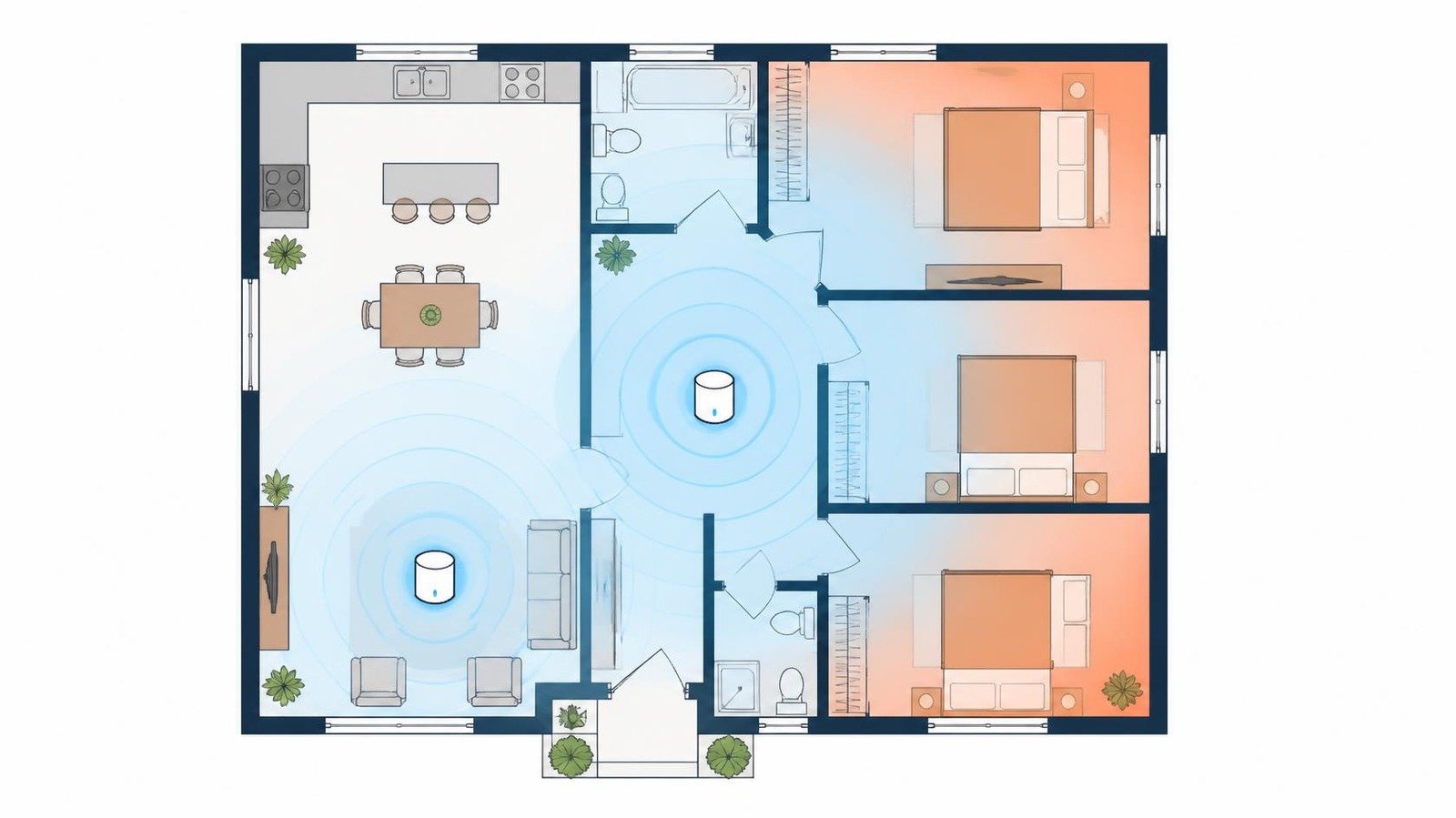
Wi-Fi signals get weaker with distance and with everything they pass through. Brick, concrete, tiles, mirrors, fridges and fish tanks all soak up signal. The faster 5GHz band carries more data but doesn’t travel as far as 2.4GHz.
Before you buy anything, try the free fixes:
- Move the router. Put it up high, in the middle of the house, and out of cupboards. A router behind the TV cabinet is a common culprit.
- Restart and update it. Old firmware can cause drop-outs.
- Check the router’s age. If the one your provider gave you is five or more years old, it may be the real bottleneck.
If the dead zone is still there, it’s time to add hardware.
Option 1: Range Extenders
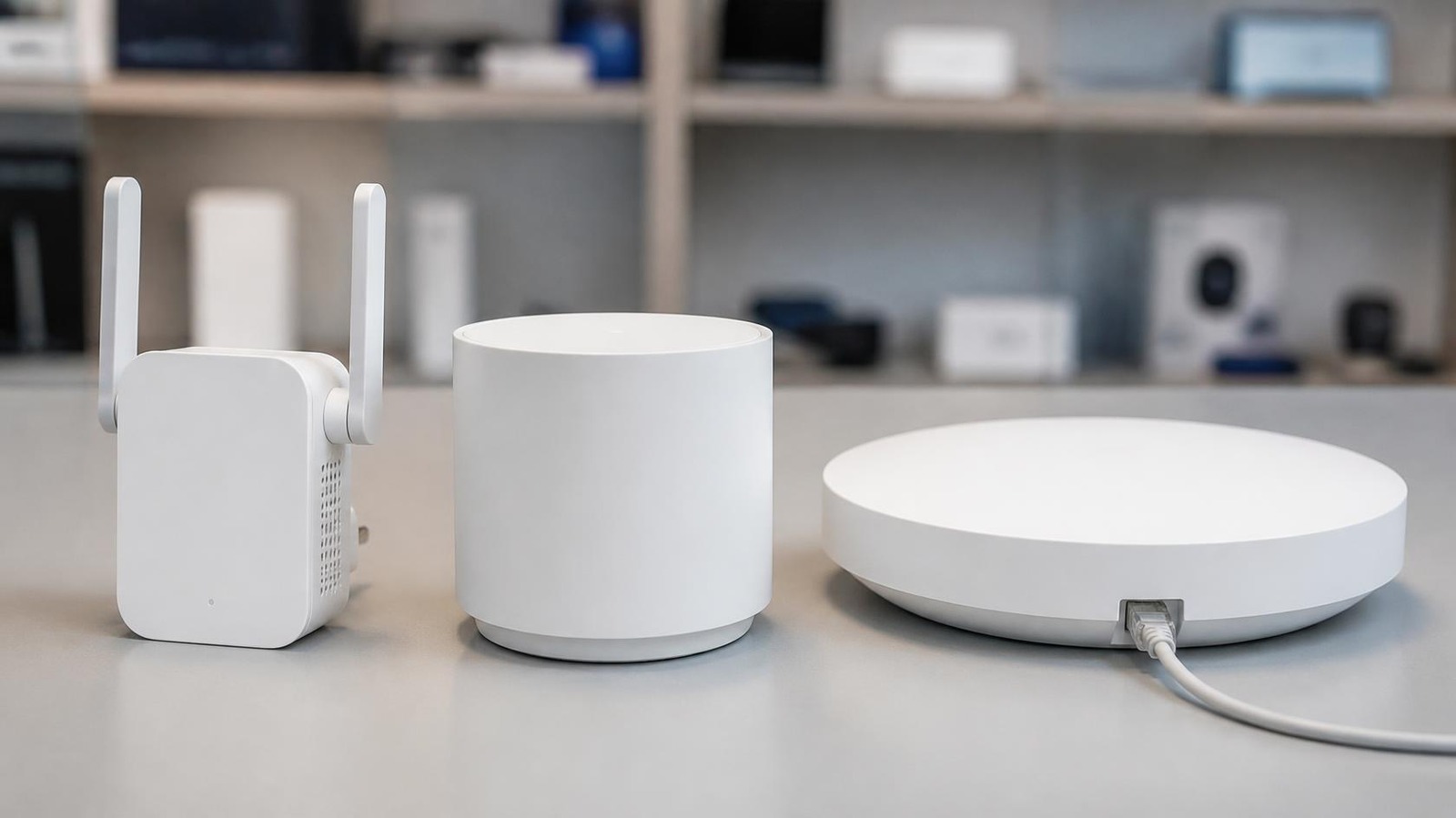
A range extender plugs into a power point between your router and the dead zone. It picks up your existing Wi-Fi and rebroadcasts it further.
- Pros: cheap, quick to set up, works with almost any router.
- Cons: a wireless extender has to listen to the router and talk to your devices over the same radios, so speed through it is usually lower than at the router. Some also create a separate network name, and devices can stay stuck on the weaker signal.
Best for: one trouble spot, such as a single bedroom, a granny flat close to the house, or a rental where you can’t change the router.
Placement tip: put the extender about halfway between the router and the dead zone, where the signal is still good. Placing it inside the dead zone just repeats a weak signal.
What about powerline?
Powerline adapters send your internet through the home’s electrical wiring, then create Wi-Fi at the other end. They can get through walls that block Wi-Fi, but results depend on your wiring. They work best when both adapters are on the same circuit, and they should plug straight into a wall socket, not a power board.
Option 2: Mesh Wi-Fi Systems
A mesh system replaces (or works alongside) your router with two or three matching units placed around the house. They talk to each other and create one Wi-Fi network with one name and password. Your phone or laptop switches to the closest unit automatically as you move around.
- Pros: whole-home coverage, seamless roaming, easy app setup, and you can add units later.
- Cons: costs more than an extender. Units still need to be placed sensibly, ideally no more than one or two rooms apart.
Best for: most family homes, two-storey houses, and anyone with lots of devices (TVs, consoles, smart home gear, work laptops).
Tip: wired backhaul. If your home has network points in the walls, connect the mesh units together with Ethernet. This frees up all the Wi-Fi for your devices and gives the best speeds. Our Cat 6 vs Cat 6A guide explains which cable to use.
Option 3: Wired Access Points
Access points are what offices use. Each one connects back to your router or network switch by an Ethernet cable, usually run through the ceiling, and is powered over that same cable (PoE). Brands like Ubiquiti UniFi and TP-Link Omada manage them from one app.
- Pros: the fastest, most reliable option. Every access point gets a full-speed wired link. Easy to expand to sheds, home offices and outdoor areas.
- Cons: needs cabling, so it’s best done during a renovation, a build, or by an installer. You’ll also need a PoE switch or injector and a compatible gateway or controller.
Best for: new builds, large homes, small offices and anyone who wants a “set and forget” network.
Extender vs Mesh vs Access Point at a Glance
| Range extender | Mesh system | Wired access points | |
|---|---|---|---|
| Typical cost | $ | $$ | $$ to $$$ |
| Setup | Plug in, 5 minutes | App setup, 15 minutes | Cabling required |
| Speed in far rooms | Fair | Good to excellent | Excellent |
| One network name | Sometimes | Yes | Yes |
| Best for | One dead spot | Most homes | New builds, offices |
Wi-Fi 5, 6, 6E or 7: Which Should You Buy?
You’ll see AX, AXE and BE on the box. Here’s what they mean.
| Standard | Label | Bands | Who it suits |
|---|---|---|---|
| Wi-Fi 5 | AC | 5GHz (dual-band routers add 2.4GHz using Wi-Fi 4) | Small, light-use homes on a tight budget |
| Wi-Fi 6 | AX | 2.4 + 5GHz | Most homes. Handles lots of devices well |
| Wi-Fi 6E | AXE | Adds 6GHz | Busy homes with newer phones and laptops |
| Wi-Fi 7 | BE | 2.4 + 5 (+ 6GHz on tri-band) | Fast NBN plans, gamers, future-proofing |
For most people, Wi-Fi 6 is still the sweet spot. It’s affordable and handles a house full of devices well. If you’re on a 500Mbps or faster NBN plan, or buying for the next five years, Wi-Fi 7 is now well priced and worth a look.
A few things to know:
- The number in the name (AX3000, BE11000) is the combined maximum of all bands. You’ll never see that speed on one device.
- The 6GHz band is fast and uncrowded but has a shorter range, and only newer devices can use it. Older devices simply connect on 2.4 or 5GHz.
- Your devices matter too. An old laptop won’t get Wi-Fi 7 speeds from a Wi-Fi 7 router, but it will still benefit from a stronger signal.
Check Your NBN Connection Type First
Most mesh systems are routers only. They plug into the NBN connection box (FTTP, FTTC, HFC, Fixed Wireless and Satellite) or into the modem-router your provider gave you.
If you’re on FTTN or FTTB, the internet comes through the phone socket, so you need a VDSL modem. Either keep your current modem-router and add the mesh behind it, or choose a mesh system with a built-in VDSL modem like the Deco X50-DSL below.
Which Should You Buy? Options From Our Range
Prices are correct at the time of writing (13 October 2026).
| Best for | Product | Spec highlights | Price |
|---|---|---|---|
| Cheapest fix for one dead spot | Mercusys ME60X | Wi-Fi 6 extender, AX1500, gigabit Ethernet port | $76.99 |
| Faster Wi-Fi 6 extender | TP-Link RE705X | Wi-Fi 6, AX3000, works with any router, OneMesh and EasyMesh support, gigabit port | $193.20 |
| Wi-Fi 7 extender | TP-Link RE225BE | Wi-Fi 7, BE3600, Multi-Link Operation | $243.58 |
| Getting through thick walls | TP-Link TL-WPA4220 KIT | Powerline kit, AV600, Wi-Fi at the far end | $132.29 |
| Budget whole-home mesh | Mercusys Halo H60X (3-pack) | Wi-Fi 6, AX1500, three units | $324.89 |
| Apartments and smaller homes | TP-Link Deco X20 (2-pack) | Wi-Fi 6, AX1800, 3-year warranty | $305.08 |
| Best all-rounder for most homes | TP-Link Deco X55 (2-pack) | Wi-Fi 6, AX3000, 3 gigabit ports per unit | $376.19 |
| FTTN / FTTB homes | TP-Link Deco X50-DSL (1-pack) | Built-in VDSL modem, Wi-Fi 6 AX3000, add more Decos later | $324.89 |
| Busy homes with newer devices | TP-Link Deco XE75 Pro (2-pack) | Wi-Fi 6E tri-band, 2.5Gbps port | $577.89 |
| Affordable Wi-Fi 7 for larger homes | TP-Link Deco BE22 (3-pack) | Wi-Fi 7, BE3600, Multi-Link Operation | $630.84 |
| Fast NBN and big homes | TP-Link Deco BE65 (3-pack) | Wi-Fi 7 tri-band, BE11000, 4 x 2.5Gbps ports | $1,207.94 |
| Homes with network points in the ceiling | TP-Link Deco X50-PoE (2-pack) | Wi-Fi 6, AX3000, PoE powered, ceiling or wall mount | $476.46 |
| Patio, pool or shed | TP-Link Deco X50-Outdoor | Wi-Fi 6, AX3000, IP65 weatherproof, adds to a Deco system | $305.08 |
| Wired access point setup | Ubiquiti U7 Lite + Cloud Gateway Ultra | Wi-Fi 7 ceiling AP (PoE powered) with a UniFi gateway to manage it | $214.29 + $222.49 |
A note on mixing brands: most extenders work with any router, but mesh units only join systems from the same family. Any TP-Link Deco works with other Decos, and Mercusys Halo H-series units work with other Halo H and E-series units. If you might add units later, stick with one range.
A note on the UniFi setup: the U7 Lite needs a PoE switch or PoE injector, as the Cloud Gateway Ultra doesn’t supply power over its ports.
Practical Tips Before You Buy
Count your rooms, not your square metres. Box coverage figures assume open space. As a rough guide, one unit covers a few rooms. A single-storey 3-bedroom home usually needs two units. A two-storey home or anything with brick internal walls usually needs three.
Place units in the open. Not in cupboards, behind TVs or on the floor. Halfway up a wall or on a shelf is ideal.
Use Ethernet where you can. Game consoles, smart TVs and desktop PCs near a mesh unit can plug straight into it for a steadier connection.
Turn off your old router’s Wi-Fi. If you keep your provider’s modem-router, switch its Wi-Fi off (or put it in bridge mode) so devices don’t hang onto the old signal.
Buy from an Australian retailer. Local stock means faster shipping, Australian power plugs, and Australian Consumer Law guarantees.
The Honest Verdict: Extender or Mesh?
One weak room and a tight budget: a range extender like the Mercusys ME60X will sort it. Place it well and don’t overthink it.
Most homes: a 2- or 3-pack Wi-Fi 6 mesh system. The Deco X55 is our pick for most families, and the Mercusys Halo H60X is great value.
Fast NBN or lots of devices: step up to Wi-Fi 7. The Deco BE22 is the affordable entry point, and the Deco BE65 is the one for big homes and gigabit plans.
On FTTN or FTTB: choose the Deco X50-DSL so you don’t need a separate modem.
Building or renovating: run cables to the ceiling and use wired access points. It’s the best Wi-Fi money can buy.
Conclusion
Dead zones are one of the easiest tech problems to fix. Start by moving the router. If that doesn’t do it, an extender sorts one problem room, and a mesh system fixes the whole house. Pick Wi-Fi 6 for value, Wi-Fi 7 for fast NBN plans, and wire it in where you can.
Ready to fix your Wi-Fi? Browse our mesh Wi-Fi systems, range extenders and access points online, with Australian stock and same-day shipping on eligible orders. Not sure what your home needs? Get in touch and tell us about your home and NBN connection, and we’ll help you choose.