
SSD Buying Guide Australia: NVMe vs SATA, and Which Size to Buy
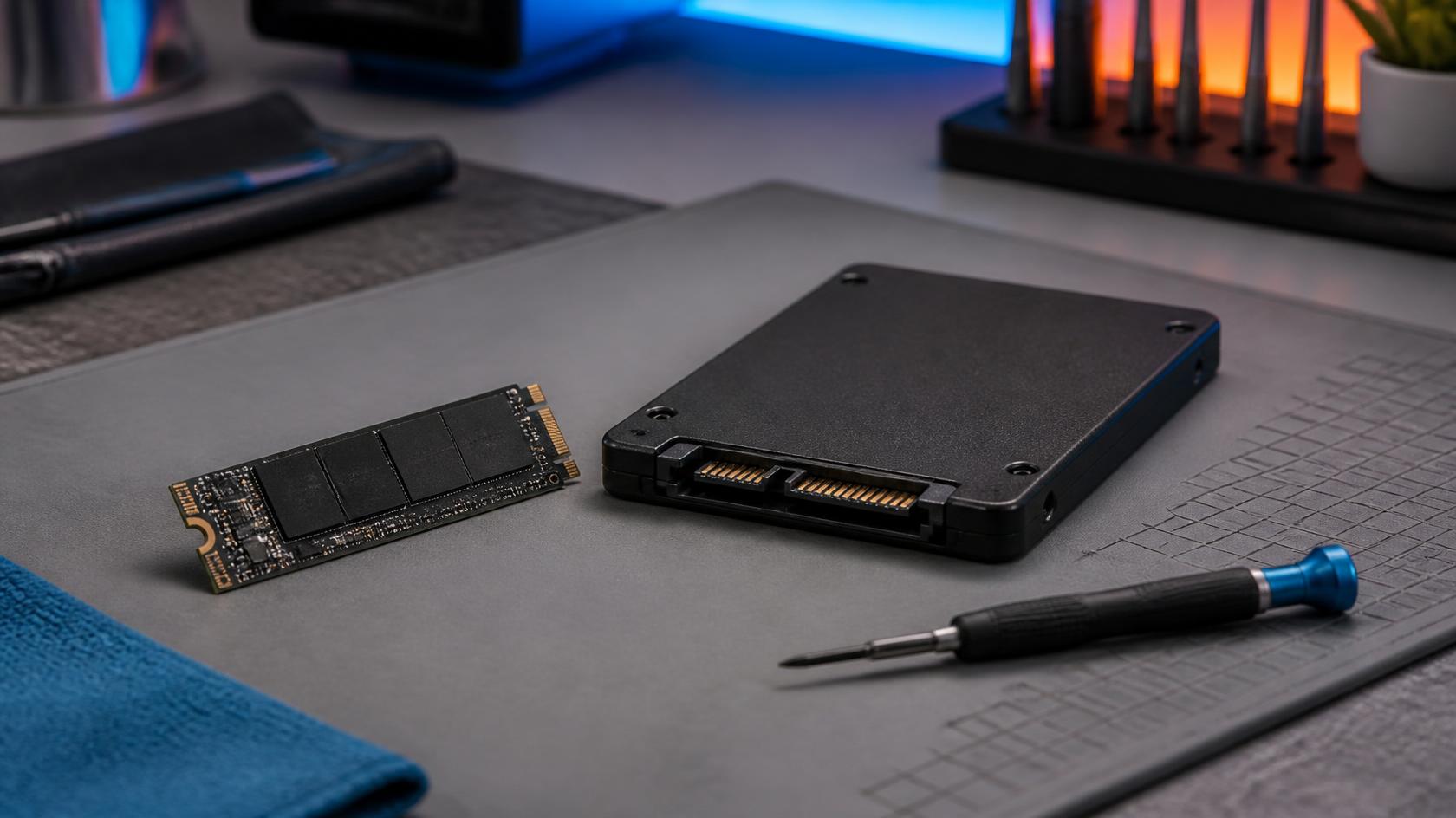
Upgrading to an SSD is the best speed boost you can give an older computer. But the product pages don’t make it easy. You’ll see NVMe, SATA, M.2, Gen4, Gen5, TBW and heatsinks, and it’s hard to tell which of those matter.
Here’s the good news: choosing an SSD is simpler than it looks. Check what your PC supports, pick a sensible capacity, and buy from a brand with a decent warranty.
In this guide we explain NVMe vs SATA, what Gen4 and Gen5 mean in real life, how much storage you need, and what to check before you buy. We’ll also show real options from our SSD range, with Australian pricing.
NVMe vs SATA: What’s the Difference?
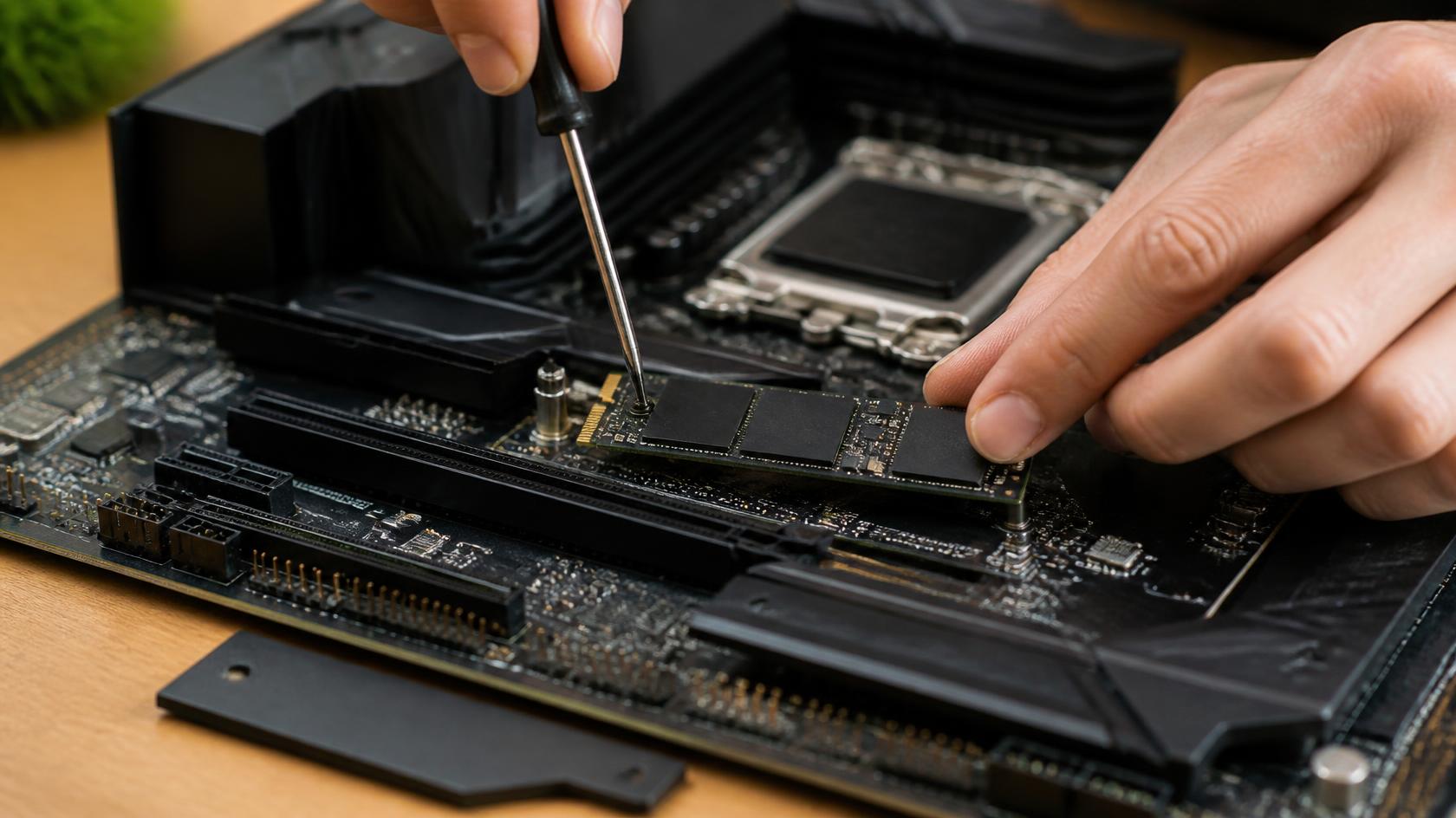
Both types are solid-state, with no moving parts. The difference is the connection.
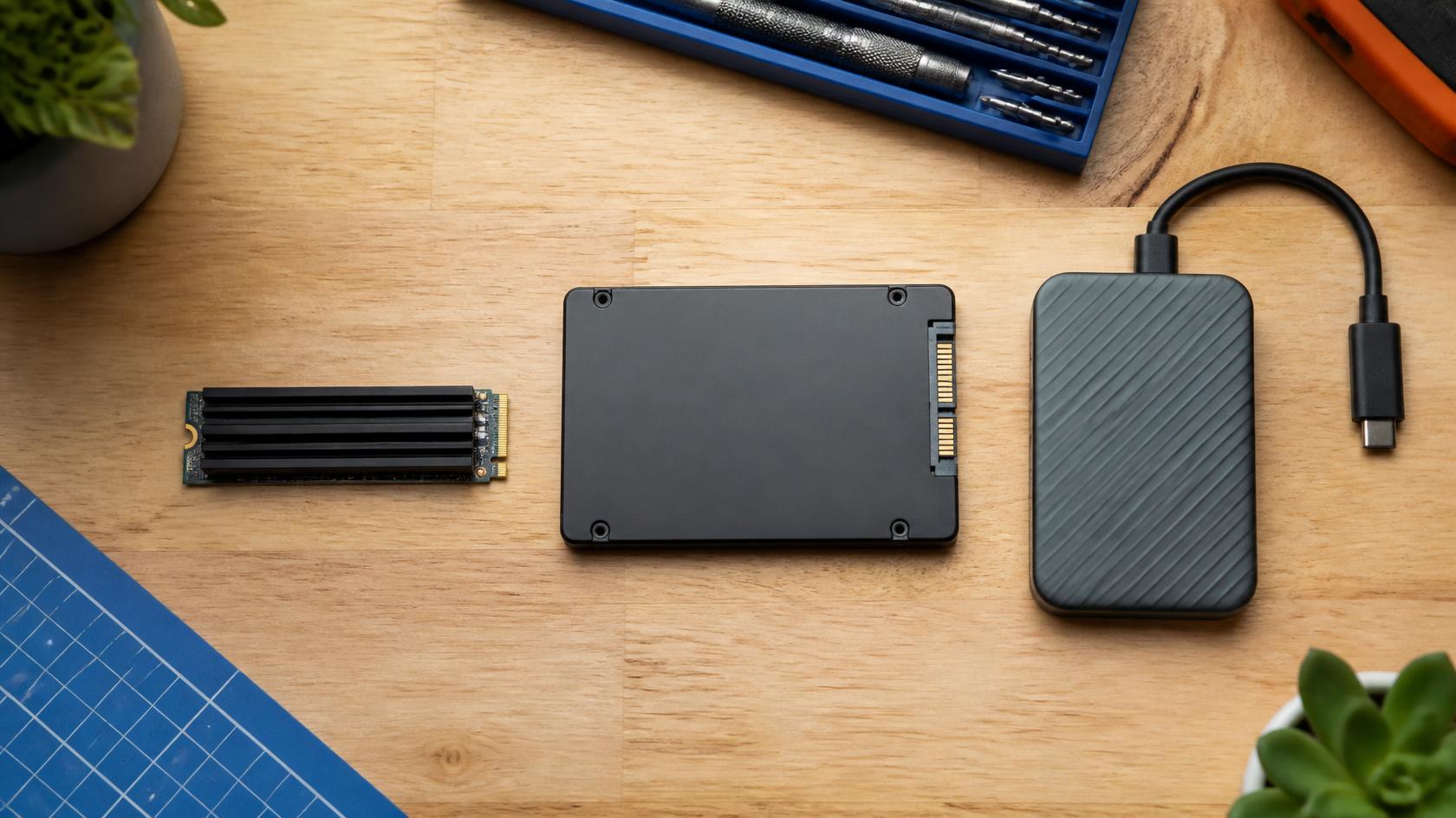
- SATA SSDs are usually 2.5-inch drives that use the same connector as an old hard drive. They top out around 550 MB/s, which is still many times faster than a hard drive.
- NVMe SSDs are small M.2 sticks that plug straight into the motherboard. They’re much faster (5,000 to 14,000+ MB/s depending on generation), and they’re what most new PCs and laptops use.
Which should you buy? If your PC has a free M.2 slot, buy NVMe. If it’s an older machine with only SATA ports, a SATA SSD is still a big upgrade over a hard drive.
Gen3, Gen4, Gen5: Does Speed Really Matter?
The “generation” is the PCIe version. Each one roughly doubles the maximum speed.
| Type | Typical top speed | Best for |
|---|---|---|
| SATA | ~550 MB/s | Older PCs, budget upgrades |
| NVMe Gen4 | ~5,000 to 7,400 MB/s | Most gaming, work and everyday PCs |
| NVMe Gen5 | ~10,000 to 14,900 MB/s | Creators, large file transfers, flagship builds |
Speeds are the manufacturers’ maximum figures. Real-world results vary.
For most people, Gen4 is the sweet spot. Boot times and game loading are very similar between a good Gen4 and a Gen5 drive. Gen5 shines when you’re moving huge files, such as video editing or large project folders. It also runs hotter, so it needs a heatsink and good airflow.
Gen5 drives work in Gen4 slots, but they’ll run at Gen4 speed.
How Much Storage Do You Need?
- 500GB: fine for a basic office PC or a second drive.
- 1TB: the practical minimum for most people. Windows, apps and a handful of games fill 500GB quickly.
- 2TB: the sweet spot for gamers and creators. Modern games are huge.
- 4TB: for big libraries, video work, or if you want one drive and no juggling.
Tip: SSDs slow down as they fill up. Aim to leave 10 to 20% free.
What Does TBW Mean?
TBW (terabytes written) is how much data the drive is rated to handle over its life. You’ll see numbers like 220TBW or 1200TBW. For everyday use, even the lower figures will last for years. Higher TBW matters more if you write a lot of data daily, such as video editing or constant large downloads. Warranty length is the easier quality signal.
Handhelds and Laptops: Check the Size
Not every M.2 drive is the same length. Most desktops and laptops use 2280 (80mm). Handheld gaming PCs and some tablets use shorter drives. The Steam Deck, original ROG Ally, MSI Claw and Surface Pro use 2230. The Lenovo Legion Go uses 2242, so a 2230 drive needs an adapter. The ROG Ally X takes a standard 2280 drive. Always check your device’s spec page before ordering.
Which SSD Should You Buy? Options From Our Range
Prices are correct at the time of writing (5 October 2026).
| Best for | SSD | Spec highlights | Warranty | Price |
|---|---|---|---|---|
| Budget SATA upgrade | Acer SA100 960GB | 2.5″ SATA III, 560/493 MB/s | 3 years | $233.04 |
| Reviving an older PC or laptop | Crucial BX500 500GB | 2.5″ SATA III, 550/500 MB/s | 3 years | $197.89 |
| Value NVMe upgrade | Crucial E100 1TB | Gen4 NVMe, 5,000/4,500 MB/s | 3 years | $289.92 |
| Best all-rounder | Crucial P310 1TB | Gen4 NVMe, 7,100/6,000 MB/s, 220TBW | 5 years | $331.89 |
| Premium Gen4 all-rounder | Samsung 990 EVO Plus 1TB | Gen4 NVMe, 7,150/6,300 MB/s | 5 years | $406.50 |
| Top-end Gen4 | Samsung 990 Pro 1TB | Gen4 NVMe, 7,450/6,900 MB/s | 5 years | $441.48 |
| Handheld gaming PCs (2230) | Crucial P310 1TB (2230) | Short 2230 size, 7,100/6,000 MB/s | See listing | $343.55 |
| Gaming PC with a built-in heatsink | Crucial P310 2TB with heatsink | Gen4 NVMe, 7,100/6,000 MB/s, 440TBW | 5 years | $464.80 |
| Fast Gen5 without the flagship price | Crucial P510 2TB | Gen5 NVMe, 10,000/8,700 MB/s, 1200TBW, DRAM-less design | 5 years | $523.09 |
| Flagship speed for creators | Crucial T705 2TB | Gen5 NVMe, 14,500/12,700 MB/s, 1200TBW | 5 years | $673.97 |
| Maximum capacity | Crucial P310 4TB with heatsink | Gen4 NVMe, 7,100/6,000 MB/s, 800TBW | 5 years | $895.49 |
| Portable SSD, no enclosure needed | ADATA SE880 1TB | USB 20Gbps, up to 2,000 MB/s | 5 years | $316.73 |
| Reuse an old SSD as a portable drive | mbeat USB-C/A 10Gbps M.2 enclosure | NVMe and SATA M.2, 10Gbps | See listing | $48.58 |
A note on Crucial: Crucial has wound down its consumer range, so stock of those drives is limited. Micron continues to honour warranties on products already sold.
A note on the E100: it’s the budget NVMe pick, with lower endurance than the P310. That’s fine for everyday use, but for a drive that works hard, the P310 or Samsung is worth the small extra.
Practical Tips Before You Buy
Check your slot. Look up your motherboard or laptop spec for the M.2 slots, supported lengths, and whether they take NVMe, SATA or both.
Plan for heat. Gen5 drives run hot. Use a heatsink (many motherboards include one) and make sure there’s airflow.
Clone, don’t reinstall. You can copy your old drive across to the new one using free cloning software, or a USB enclosure.
An SSD isn’t a backup. Keep important files copied somewhere else too.
Buy from an Australian retailer. Local stock means faster shipping, and Australian Consumer Law guarantees apply.
The Honest Verdict: Which SSD Should You Buy?
For an older PC or laptop: a SATA SSD like the Acer SA100 or Crucial BX500 transforms it. Don’t overthink it.
For most people: a 1TB Gen4 NVMe is the sweet spot. The Crucial P310 is our value pick, and the Samsung 990 EVO Plus is a great step up with a 5-year warranty.
For gamers and creators: go 2TB, and use a heatsink version if your motherboard doesn’t have one.
For heavy file work: a Gen5 drive is worth it if you move large files daily. For everyday use, you won’t notice.
For handhelds: double-check the size (2230, 2242 or 2280) before you order.
When in doubt: buy the best warranty you can afford, and choose more capacity than you think you need.
Conclusion
Choosing an SSD doesn’t have to be stressful. Check what your device supports, aim for 1TB or more, and pick a drive with a warranty that matches the price. Do that and you’ll have a faster, quieter machine for years.
Ready to upgrade? Browse our full SSD range online, with Australian stock and same-day shipping on eligible orders. If you’re not sure which drive suits your build, get in touch and we’ll help you choose.